Getting Started with Penvio Edit
Learn how to edit PDFs like a pro with Penvio Edit. This guide covers everything from basic text editing to advanced features.
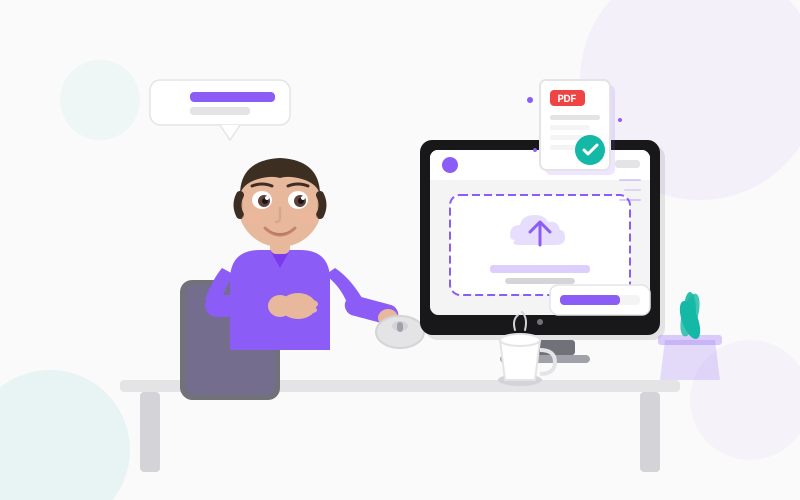
Welcome to Penvio! Whether you're new to PDF editing or switching from another tool, this guide will help you get up and running quickly.
Creating Your Account
Getting started with Penvio is simple:
- Visit penvio.io/signup and create your free account
- Verify your email address
- You're ready to start editing!
The free plan includes 3 documents and 10MB of storage, perfect for trying out the platform.
Uploading Your First Document
Once you're logged in, you'll see the dashboard. Here's how to upload a PDF:
- Click the Upload button or drag and drop a file
- Wait for the upload to complete
- Click on the document to open the editor
Penvio supports PDFs up to 500 pages, with file size limits depending on your plan.
Basic Text Editing
One of Penvio's most powerful features is inline text editing. Unlike other tools that require you to use text boxes, Penvio lets you click directly on existing text to edit it.
How to Edit Text
- Open your document in the editor
- Select the Text tool from the toolbar
- Click on any text in the document
- Start typing to make changes
The editor will automatically match the existing font, size, and color. You can also change these settings using the formatting panel.
Adding Annotations
Penvio includes a full suite of annotation tools:
- Highlight - Mark important text
- Underline - Emphasize key points
- Strikethrough - Show deleted content
- Comments - Add notes for collaborators
- Shapes - Draw rectangles, circles, and arrows
- Freehand - Sketch directly on the document
Working with Pages
Need to reorganize your document? Use the thumbnail sidebar to:
- Drag and drop pages to reorder them
- Right-click to delete pages
- Insert new pages from other PDFs
- Rotate pages that are upside down
Saving and Downloading
Penvio automatically saves your work every 30 seconds. You can also:
- Click Save to save immediately
- Click Download to get a copy of your PDF
- Use File > Export for additional formats
Next Steps
Have questions? Check out our documentation or contact support.